
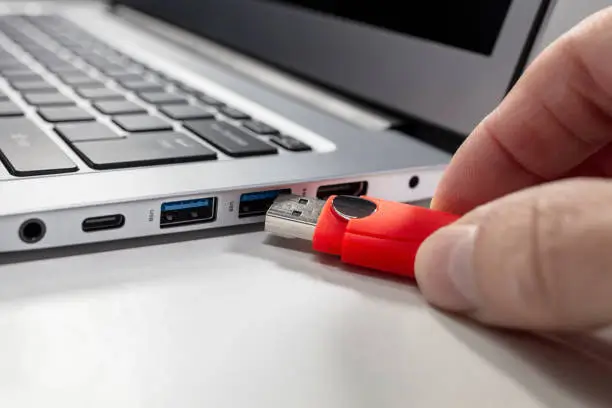
 If you are reading this, chances are you cannot write to your USB drive on your Mac.
To force a USB drive to be both read and writable, I did the following (note, I had a Kingston drive, so my Mac identified it as KINGSTON and I went with that. If you buy a USB drive that is not from Kingston, you may see something different):
- In Finder, go under Applications > Utilities and start Disk Utility
- Click on your USB disk on the left (E.g. KINGSTON) and then click on Erase (top right)
- You can change the name if you want (I left it at KINGSTON) and make Format: ExFAT
- Once you do that, click the Erase button to format the disk
- Click on Unmount (top right) to unmount the disk
- Open a terminal window (Open Finder. Go to Applications > Utilities > Terminal) Enter the following diskutil list command in the Terminal window and note the results:
diskutil list

/dev/disk2 (external, physical):

#: TYPE NAME SIZE IDENTIFIER

0: FDisk_partition_scheme *62.0 GB disk2

1: Windows_NTFS KINGSTON 62.0 GB disk2s1
Note it my case the KINGSTON drive is associated with disk2s1. (you see that on the line “1: Windows_NTFS KINGSTON 62.0 GB disk2s1”. It may be different for you. Regardless, you want the drive name that comes after the 62.0 GB.) - While in the terminal window, make a corresponding directory in the /Volumes area of your machine that has the name of your drive (in my case, KINGSTON)
sudo mkdir /Volumes/KINGSTON - Also in the terminal window, you can mount your disk as writable and attach it to the mount point
sudo mount -w -t ExFAT /dev/disk2s1 /Volumes/KINGSTON
You should now be able to write to your drive as well as read it.
 Smart People I Know