
On my recent vibe coding experiences building a web site and a spotify app using Copilot and Claude, October 2025. Here’s what I did and what I learned.

Computer and code

I recently took a vibe coding approach to try and do two things:

  1. build a simple web site / blog using Microsoft Copilot
  2. write an app to extract information from Spotify using Claude from Anthropic.

Why? For some time I had these two projects in mind:

  1. Go back to the days when a blog — web log — was nothing more than a simple html page.
  2. Programatically built Spotify music playlists vs doing it in the Spotify app.

My main constraint was do it quickly: it was meant to be fun. So don’t spend all weekend getting up to speed on APIs and HTML and CSS: just see what I could do aided by A.I.

First up, to build the web site, I started with Microsoft’s A.I. Since I had some requirements of what I wanted the web log to look like, I told them to Copilot and had it built me the one page blog web site. It helps to be clear on your requirements, but I found that I only needed a few of them to start with. As I went along, new requirements would come to me (e.g. the ability to add photos from the Internet) and I would tell Copilot to now incorporate these new requirements and give me a new web site. My experience vibe coding is that there is a lot of back and forth in order to be effective. As well, there were things that I could just manually do by hand, like add a background tile and change the picture on the header, so I eventually I bailed on using Copilot and finished it by hand. You can see the result here. It’s just what I wanted.

What makes things better was that I asked Copilot to write me a python program which would allow me to easily add to the blog and then push it to AWS. That was a great new addition. Now I can just enter a line on the command line and the blog gets updated.

All in all a very successful project.

As for my Second project with Spotify, I switched from Microsoft to Anthropic. At first Claude produced great code: I asked it to build me a UI that allowed me to type in the name of three songs and then take these songs, use Spotify to build me a playlist built around those songs and lo and behold it did. Things went downhill from there. Much of the code, while long, had numerous errors. I would provide the errors to Claude and it would correct things. The code did get better, but after 30 versions, it was time to call it quits. Instead I took small chunks of the code and using VS Code, manually tried to determine why it was not working. I was able to ultimately nail it down to one Spotify API call. And why wasn’t it working? Because Spotify disabled access to it in 2024. Did Claude know that? I don’t know. It certainly didn’t act like it.

All in all a very unsuccessful project.

What did I learn for this? What would I recommend to you?

  • I have been most successful vibe coding when I get the AI to code in small chunks. Give it small requirements and see if it can successfully do them. Then build up the chunks. That was the case in Copilot. With Claude I took the big bang approach, and then spent lots of time debugging. Eventually to discover the problem, I went to the small chunk approach manually.
  • A.I. is great for grunt level coding. Writing python code to loop through input and extract data under complicated conditions is something I hate to do. A.I. does it better and quicker than me. Again, it’s like using a mixer in the kitchen instead of your arm. It’s impressive to do things with your arm, but the mixer is fine.
  • A.I. is great for fussy coding. One thing I like about coding HTML and CSS using A.I. is I do not have to remember how to get the divs done and which CSS code I do for certain colors, etc. I just tell the A.I. and it does it.
  • A.I. has replaced my templates. I used to have a fair amount of code templates, and when I would start a project, I would get out a good template. When I didn’t have a template, I would often times spend hours going through old code trying to find an example to use as a template. Now I just get A.I. to give it to me.
  • Know when to bail on using A.I. and start doing the work yourself. I think of A.I. as a power tool: it let’s you do things fast, but for the detail work, you need to get in there with the hand tools and do things manually.
  • Make LOTS of backups. Backup your prompts too if you can. I have gone down a certain path in vibe coding, forget to do a backup, and it’s been a mess. As well, at times the A.I. will start to produce bad code. If you version control things, you can go back to a copy from an hour ago that did work and start again.
  • Most LLMs do a pretty good job of coding. I’d recommend Copilot because it is easy: it’s integrated into my Microsoft tools. The results from Claude were good too. I suspect as things advance, the code that comes out of all of them will get better and better.
  • I am not afraid of forgetting how to program in python or html any more than I was afraid of forgetting how to program in assembler when I moved on to C. Os using SQL to work with data rather than hand coding PL/1 code to do things. Or using Java and JDBC. The goal for me is to get my results via some form of coding, and if I can achieve that faster with a higher level of code combined with greater abstraction, I am fine with that.
  • The better you already are at coding, the better your chances of success. I have never had A.I. completely build my code. I get to 80-90%, then do the rest by hand. I am fine with that: I literally save hours every time I do this vs my old approach of using templates and old source code. If you have to depend on A.I. to do 100% of the coding, I suspect you will have more chances of failure. Also, if the code runs successfully with some inputs but fails with other inputs, having debugging skills will make a difference.
  • YMMV. These are my experiences based on these projects. Your experience using A.I. to assist with coding your project may be wildly different than mine. I do hope you have a good/better experience.

Thanks for reading this. I hope it helps.

P.S. When I talk of vibe coding, I am using the definition used by my current employer. The opinions expressed above are mine only and not necessarily those of my employer.
 

A good guide of how to create a web page with some css

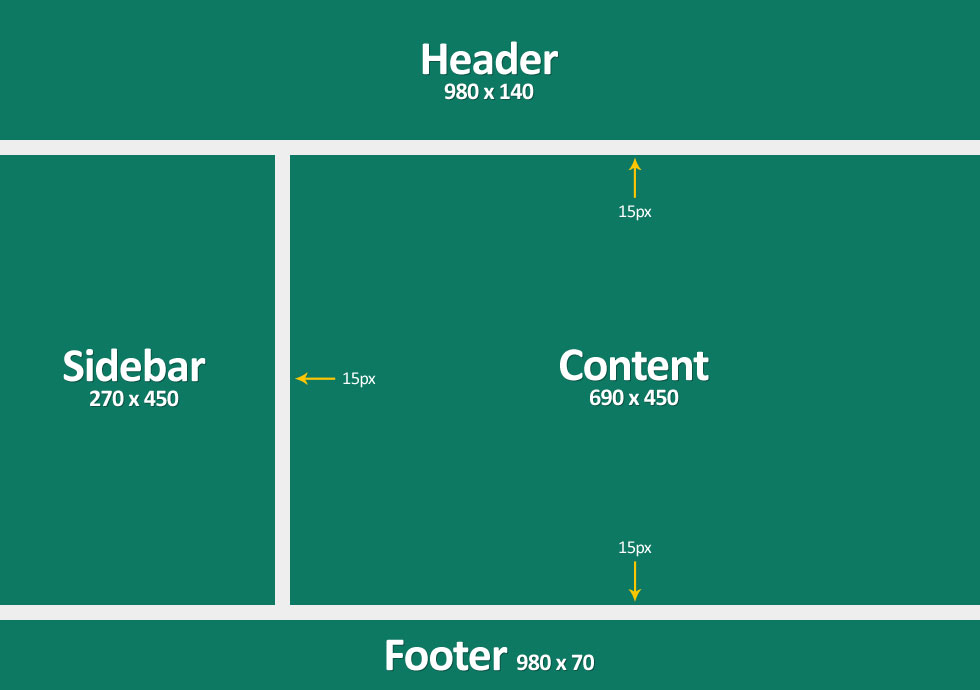
If you want to create a basic web page with some css, I recommend you check out this. In no time you will have a web page structured like this:

If you want to have something even simpler, I have it here.

Of course you can use something bootstrap to make a nice webpage too. Indeed a page built with bootstrap is more flexible than the page above. For more on that, check this page out.

On futzing around with code

An example of a Prolog program

I was futzing around with code the other day. I wrote some html/css/javascript and then I wrote some unrelated prolog code. None of it had any value. The code didn’t solve some important problem. Some might consider it a waste of time.

But it wasn’t a waste. In both cases, I learned skills I didn’t have until I wrote the code. Those skills have value for the next time I do have to solve an important problem. Besides that, I enjoyed myself while coding. I was proud of myself for getting the code to work. That enjoyment and pride have value too.

Futzing around is a form of play, and any form of play is good for us as humans. Remember that the next time you consider taking on seemingly useless activities.


Ok, you have a web page or a web site. Here’s how can you make it look better in no time


All you have to do is follow the instructions outlined in this piece by Anna Powell-Smith: How to Make Your Site Look Half-Decent in Half an Hour

The instructions are from 2012 but they still works really well! I took a bunch of the ideas from it to recently jazz up my web site, berniemichalik.com.

You don’t need special tools or deep HTML or CSS skills. Just follow along and you will have a much better looking web site in..well…30 minutes.

(Photo by Carl Heyerdahl on Unsplash)

A simple tutorial to set up an about.me site on github

I used to be a big fan of about.me: they enabled me to create a personal home page far better than what I could do. Unfortunately they stripped out some of the things that made the page look great, and when they did that, I decided to make my own about.me page, using free hosting on Github.

First off, here is what my page looks like: http://blm849.github.io

Here’s the steps I took to make it.

Before you start, here’s what you will need if you want to follow my steps. You’ll need:

  • a text editor. Notepad or Textpad or vi will all work fine.
  • some knowledge of HTML. Not too much. If you just follow the steps below, you should be fine. If you want some quick knowledge of HTML, see this: HTML Tutorial
  • some knowledge of  git and github.com. Again, not too much. If you follow the steps below, you should not need any. If you want some quick knowledge of git and github, see this: How to learn github fairly easily | Smart People I Know
  • Some words describing yourself that you want to have on the site.
  • An image file of yourself that you would want to serve as the background of the site. The one I had was a simple photograph I took with my smartphone.
  • A working file directory on your computer to hold your files.

Here are the steps:

  1. Set up your site on Github. To do this, follow the steps, here: GitHub Pages – Websites for you and your projects, hosted directly from your GitHub repository. Just edit, push, and your changes are live. Check it out. Use your working file directory to store the files. Once you complete the steps, and pointing your browser at http://username.github.io works, you are going to want to personalize the site. (Note: username = the name of your userid. e.g. my userid on github is blm849)
  2. Use a repository from someone else to make the job simpler. To create my site, http://blm849.github.io, I used a repository from here: https://github.com/weightshift/The-Personal-Page. It’s great. I simply downloaded the ZIP file, unzipped the files, and copied and replaced the files in the working file directory. In your case, I would recommend you take my repository and my files and modify them. I’ll explain in a bit. My repository and my files are here: https://github.com/blm849/blm849.github.io. Click on the “Clone or Download” button and then click “Download ZIP” to do this. Like I said, download the zip file, unzip the files, put them in your working file directory.
  3. Also, copy your background image (e.g. background.jpg) into the working file directory.
  4. Now edit the index.html file in the working file directory. Make the following changes and then file index.html:
    1. On line 5, change the text between <title> and </title>. This text will appear on the browser tab when someone opens your site.
    2. For lines 41-51, replace the lines I have in here with the words describing yourself. The only HTML I used here is:
      • the <br> tag to add some blank lines before the line “My name is….”. I found it looked better when I did this.
      • the <p></p> tag to format the words into paragraphs. Again, it makes it more presentable.
      • the <b></b> tag to make my name bold. I wanted it to stand out. If you don’t, remove those tags.
      • the <a></a>tag to have links to other web pages about me. If you don’t have links elsewhere, you can remove those.
    3. On line 58, replace “blm.jpg” with “background.jpg” (assuming that the file name of your background image is called background.jpg. If it is called something else, use that file name instead.)
  5. Once you have made the changes and saved index.html,  open it with your favourite browser. (To do this, right click on the file and select “open with…” and pick your browser.) Check to see if the words are correct and the background image is correct and the formatting is correct. If not, you will have to go back and edit the file and fix your errors.
  6. Once you are happy with it, do the following:
    1. Delete any background image files in the working file directory that are not yours (blm.jpg and nh_bg.jpg)
    2. Enter: git add –all
    3. Enter: git commit -m “secondary commit with my own information”
    4. Enter: git push -u origin master
    5. Point your browser at http://username.github.io and make sure it works.

That’s it!

One final note: I recommended using my repository and not the original one I worked on. I did that because I had some problems with displaying my page on my iPhone 6s plus. I added some files and tweaked the index.html file to get it to work. By using my package and my index.html file, there are less changes for you to make, I believe. That said, I am grateful for the code from the original repository and I am making sure I credit the owner of that repository (as should you).

Are you trying to convert Word documents to HTML?

If so, you know of all the …stuff…Word will add in there. I understand why Microsoft does it, but I would rather not have it. If you are in the same boat, I recommend you check out this site: Convert Word Documents to Clean HTML. It gives you the ability to take snippets of said HTML and clean it up for you.

It has it’s limits, but worth a look. Or to your tool box.