It’s time for PI (What I find interesting in tech, special raspberry pi edition, Mar. 2025)


Over the last year I’ve been working with various Raspberry Pi products, from the Pi Pico to the all-in-1 400 series. Along the way, I’ve found these links / articles to be useful for me. I hope they might help you too.

How To Guides: Here’s a variety of how to articles for various Raspberry Pi products:

LCD/OLED output: If you want to use LCD or oled displays with your Pi, check out how to get Billboard Scrolling with LCD Display & Raspberry Pi Pico. Here’s how to get your raspberry pi working with your oled. More on that, here: using ssd1315 oleds with the raspberry pi pico. Also here .

RPis’ config.txt: If you want to use your Pi with an old composite display, then you need to learn more about the config.txt file. So here’s click on the links to know about the config.txt file: here and here and here and here.

If you are having problems with output display, check those out. Also, how do i shrink the screen with composite out is good. So is this: how to add an rca tv connector to a raspberry pi zero. 

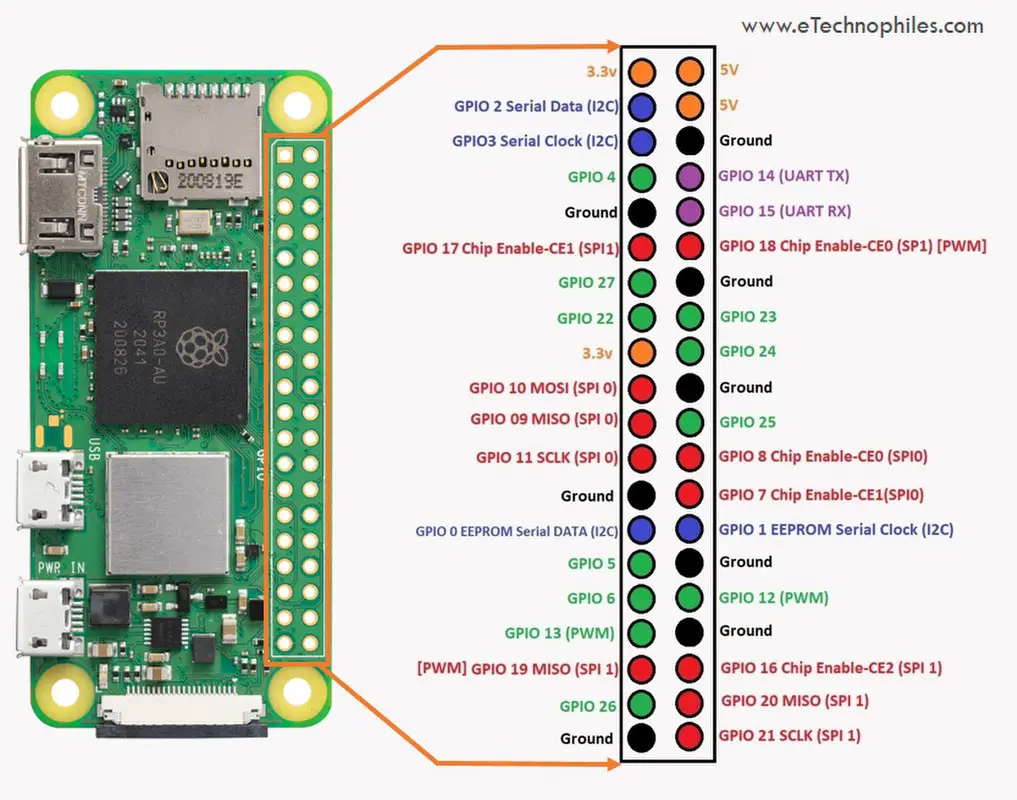
Pin settings: Pin settings articles for the Raspberry Pi are here and  here and  here. Finally, here’s the pin layout for the  Digispark Pro. More on the Digispark here.

P.S. Posted on 3/14 for obvious reasons. 🙂

Lessons learned from working on my Raspberry Pi devices (and Raspberry Picos too)

This week I successfully set up five Raspberry Pi devices at home: 3 Pi Zeros, 1 Pi 400, and 1 Pi original. Plus I have two old C.H.I.P. computers that work. I had struggled with using them in the past, but this time it was a breeze due to the lessons I’ve learned. Here’s some of these lessons:

Get wireless ones: I originally had Pi Zeros and Picos without wireless capability. And that can be fine if you know you don’t need it. But it is helpful to be able to have them communicate wirelessly and it gives you more flexibility, even if it costs a few more bucks.

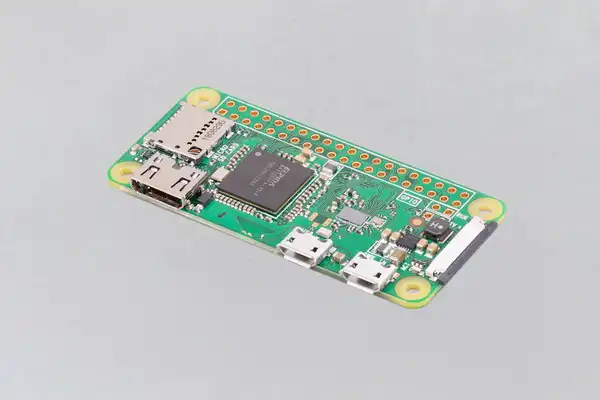
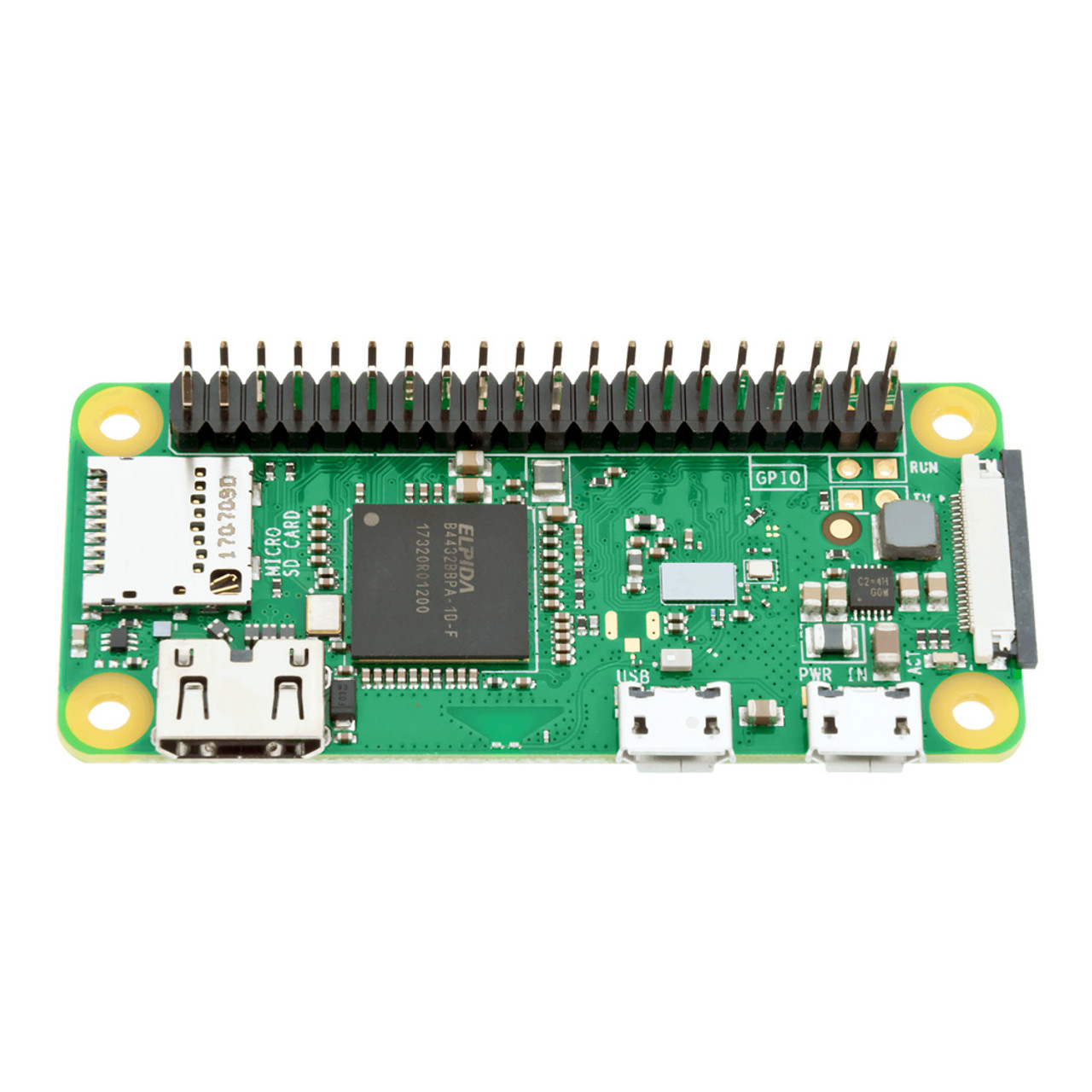
Get headers: again, I had some Pi Zeros and Picos without headers. Unless you are good with soldering, get the ones with headers. It just makes it easier physically  connect them to other technology. The Pi Zero above has no headers, the one below does.

Keep track of all the connectors you need and kept them handy: With the Pi Zeroes, I have a set of adapters that allow me to connect it to power, USB and HDMI. Once I have it set up, I just need a cable to provide power and I run it in headless mode (which I can do because of wireless). I have a special box for all that stuff so I can easily find it.

Give your Pis unique hostnames: if you are going to be connecting to them via ssh or scp, then give them a unique host name. You can do this when you set them up. What’s nice about that is once they connect to the wireless network, I can easily identify them. For example, I can ping pizero1 or I can ssh myuserid@pizero2 versus trying to find out their IP address of 192.168.0.??

Designate a machine for setting up the Pis: for me, I have a Pi 400 that I use to program the Picos. And I have a Ubuntu machine to format the SD cards. But you do what works best for you.Having a consistent environment means when you run into problems, the problem is likely not with your environment but with the SD card or the Pico.

Avoid obsolete or tricky technology: in the past I got discouraged by trying to get old or tricky technology to work. I had old dongles that gave me errors when trying to build the SD cards properly; I had old unsupported Digispark devices that would not work at all; and I had some Adafruit devices that were cool but the path to success with them was challenging. In the future, I am sticking with tried and true technology from Arduino and Pi. Don’t make working with such devices any harder than it has to be.

Get cases for your Pis: if you are going to use them on the regular, get a case. Even a cheap case make it look like a finished and working device and not some hack. Not only does it look better, but it will likely work better (i.e. the cables will not move around and lose a connection). And make sure the case you get is made for your device so it will fit properly.

Document as you go: keep some log of what worked and what didn’t. Take photos of successful set ups. Save all the good web sites that helped out. Better still, blog about it. (If you search this blog for “raspberrypi” you will find the things I have found and written about.)

Good luck with your projects. May they go smoothly.

In praise of this 37 in 1 Sensors Starter Kit

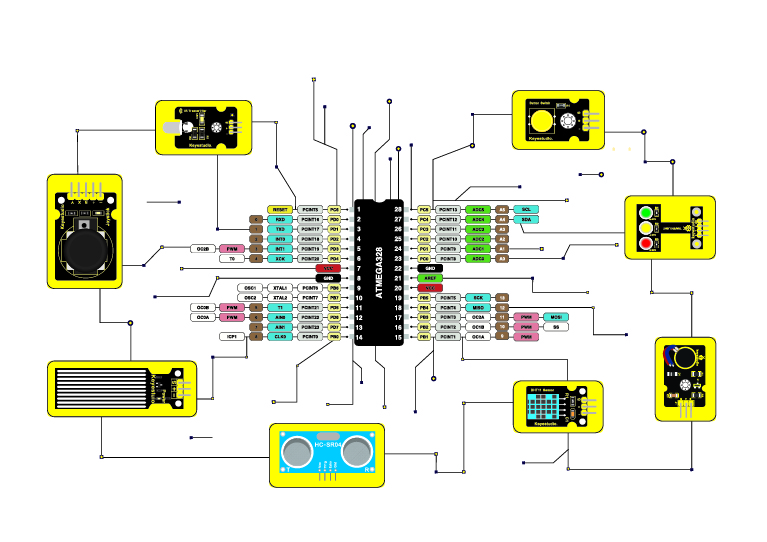
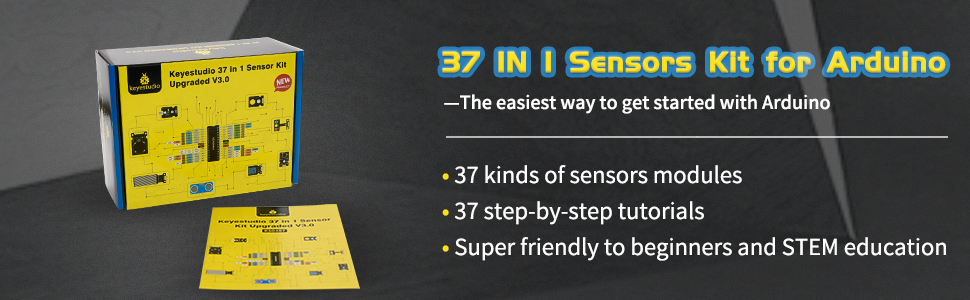
If you’re like me and you’re doing work with an Arduino or a Raspberry Pi, you are going to want to hook it up to something. Now the something might just be a simple button or an LED, or it might be more sophisticated like an infrared receiver or a heat sensor. If that’s you, then you want to consider getting this:  KEYESTUDIO 37 in 1 Sensors Starter Kit for Arduino Mega R3 Nano Raspberry Pi Projects (on amazon.ca).

It says Sensors starter kit, but it has a nice collection of LEDs and buttons, too. Each of the 37 items are easy to plug into a breadboard or you can connect them to your Pi or Arduino with wires.

Other great things:

  • the sensors are all labelled. That means you won’t be pick one up months from now and asking yourself: what does this do?
  • their documentation is really good. It’s online, here. (Note, their site is slow: I printed the long web page into a PDF that I can quickly refer to.)
  • The sensors have their own resistors built in. That way you don’t have to put your own resistors between the Pi and an LED, for example.
  • there is a wide variety of sensors in this kit. You will be able to do many a project with all these sensors.

I’ve purchased sensors in the past, and the problems I’ve had with them are gone due to this kit. I’m glad I bought it.


AI: from the era of talking to the era of doing

AI a year ago was mostly talking about AI. AI today is about what to do with the technology.

There are still good things being said about AI. This in depth piece by Navneet Alang here in the Walrus was the best writing on AI that I’ve read in a long time. And this New York Times piece on the new trend of AI slop got me thinking too. But for the most part I’ve stopped reading pieces on what does AI mean, or gossip pieces on OpenAI.

Instead I’ve been focused on what I can do with AI. Most of the links that follow reflect that.

Tutorials/Introductions: for people just getting started with gen AI, I found these links useful: how generative AI works, what is generative AI, how LLMs work, best practices for prompt engineering with openai api a beginners guide to tokens, a chatGPT cheat sheet, what are generative adversarial networks gans, demystifying tokens: a beginners guide to understanding AI building block, what are tokens and how to count them, how to build an llm rag pipeline with llama 2 pgvector and llamaindex and finally this: azure search openai demo.

Software/Ollama: Ollama is a great tool for experimenting with LLMs. I recommend it to anyone wanting to do more hands on with AI. Here’s where you can get it. This will help you with how to set up and run a local llm with ollama and llama 2. Also this: how to run llms locally on your laptop using ollama. If you want to run it in Docker, read this. Read this if you want to know where Ollama stores it’s models. Read this if you want to customize a model. If you need to uninstall Ollama manually. you want this.

Software/RAG: I tried to get started with RAG fusion here and was frustrated. Fortunately my manager recommended a much better and easier way to get working with RAG by using this no-code/low-code tool, Flowise. Here’s a guide to getting started with it.

Meanwhile, if you want more pieces on RAG, go here, here, here, here, here, here, here, here, here, here, here, here, here, here, here, here, here, here, here, and here. I know: it’s a lot. But I found those all those useful, and yes, each “here” takes you to a different link.

Software/embedding: if you are interested in the above topics, you may want to learn more about vector databases and embeddings. Here are four good links on that: one  two,  three, four.

Software/models: relatedly, here’s four good links on models (mostly mixtral which I like alot): mixtral, dolphin 25 mixtral 8x7b,  dolphin 2 5 mixtral 8x7b uncensored mistral , Mistral 7B Instruct v0.2 GGUF,plus a comparison of models.

Software/OpenAI: while it is great to use Ollama for your LLM work, you may want to do work with a SaaS like OpenAI. I found that when I was doing that, these links came in handy: how OpenAI’s billing works, info on your OpenAI  api keys, how to get an OpenAI key, what are tokens and how to count them, more on tokens, and learn OpenAI on Azure.

Software/Sagemaker: here’s some useful links on AWS’s Sagemaker, including pieces on what is amazon sagemaker, a tutorial on it, how to get started with this quick Amazon SageMaker Autopilot, some amazon sagemaker examples , a number of pieces on sagemaker notebooks such as creating a sagemaker notebook, a notebooks comparison, something on distributed training notebook examples and finally this could be helpful: how to deploy llama 2 on aws sagemaker.

Software in general: these didn’t fit any specific software category, but I liked them. There’s something on python and GANs, on autogen, on FLAMLon python vector search tutorial gpt4 and finally how to use ai to build your own website!

Prompt Engineering: if you want some guidance on how best to write prompts as you work with gen AI, I recommend this, thisthis, this, this, this, this, and this.

IT Companies: companies everywhere are investing in AI. Here’s some pieces on what Apple, IBM, Microsoft and…IKEA…are doing:

Apple Microsoft copilot app is available for the iphone and ipad.

IBM: Here’s pieces on ibm databand with self learning for anomaly detection;  IBM and AI and the EI; IBM’s Granite LLM; WatsonX on AWS; installing watsonX; watsonx-code-assistant-4z; IBM Announces Availability of Open Source Mistral AI Model on watsonx; IBM’s criteria for adopting gen AI ;probable root cause accelerating incident remediation with causal AI; Watsonx on Azure; Watsonx and litellm; and conversational ai use cases for enterprises 

IKEA:  here’s something on the IKEA ai assistant using chatgpt for home design.

Microsoft from vision to value realization –  a closer look at how customers are embracing ai transformation to unlock innovation and deliver business outcomes, plus an OpenAI reference.

Hardware: I tend to think of AI in terms of software, but I found these fun hardware links too. Links such as: how to run chatgpt on raspberry pi; how this maker uses raspberry pi and ai to block noisy neighbors music by hacking nearby bluetooth speakers; raspberry pi smart fridge uses chat gpt4 to keep track of your food. Here’s something on the rabbit r1 ai assistant. Here’s the poem 1 AI poetry clock which is cool.

AI and the arts: AI continues to impact the arts for ways good and bad. For instance, here’s something on how to generate free ai music with suno. Relatedly here’s a piece on gen ai, suno music, the music industry, musicians and copyright. This is agood piece on artists and AI in the Times. Also good:  art that can be easily copied by AI is meaningless, says Ai Weiwei. Over at the Washington Post is something on AI image generation. In the battle with AI, here’s how artists can use glaze and nightshade to stop ai from stealing your art. Regarding fakes, here’s a piece on Taylor Swift and ai generated fake images. Speaking of fake, here’s something on AI and the porn industry. There’s also this  piece on generative ai and copyright violation.

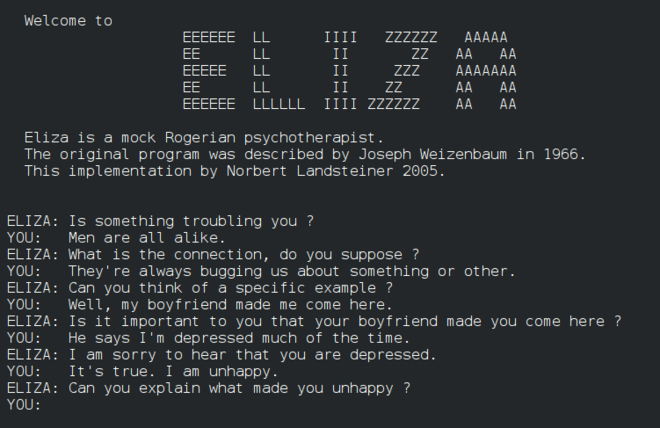
Finally: I was looking into the original Eliza recently and thought these four links on it were good: one, two, three and four. Then there’s these stories: on AI to help seniors with loneliness, the new york times / openai/  microsoft lawsuit, another AI lawsuit involving air canada’s chatbot. stunt AI (bot develop software in 7minutes instead of 4 weeks) and a really good AI hub: chathub.gg.

Whew! That’s a tremendous amount of research I’ve done on AI in the last year. I hope you find some of it useful.

It’s winter. Time to curl up with a good…list of tech links :) (What I find interesting in tech January 2024)

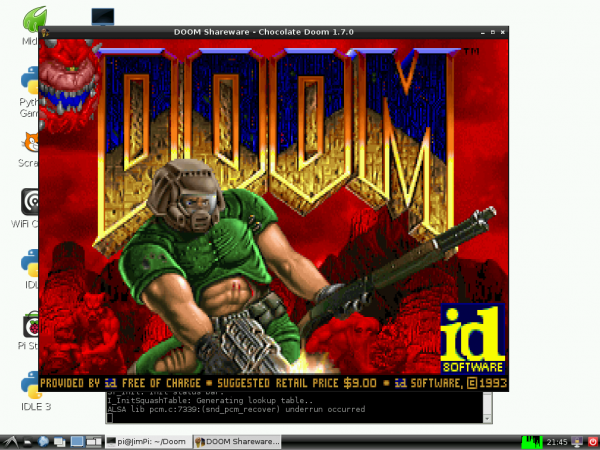
500Wow. I have not posted any tech links since last September. Needless to say, I’ve been doing alot of reading on the usual topics, from architecture and cloud to hardware and software. I’ve included many of them in the lists below. There’s a special shout out to COBOL of all things. Is there something on DOOM! in here? Of course there is. Let’s take a look….

Architecture: A mixed bag here, with some focus on enterprise architecture.

Cloud: a number of links on cloud object storage, plus more….

COBOL: COBOL is hot these days. Trust me.

Hardware: mostly but not exclusively on the Raspberry Pi….

Mainframe/middleware: still doing mainframe stuff, but I added on some middleware links….

Linux/Windows: mostly Linux but some of the other OS….

Software: another mixed bag of links…

Misc.:  For all the things that don’t fit anywhere else….also the most fun links….

Thanks for reading this!

Will there be Doom? (What I find interesting in hardware/software in tech Jul 2023)

While my last few posts on IT have been work related, most of these are on hardware and software and tend to be more hobby and fun related.

Hardware links:

Software links:

Hope something there was useful! As always, thanks for reading!

P.S. Before I forget… here’s a piece on how a hacker brought Doom to a payment terminal. Love it!


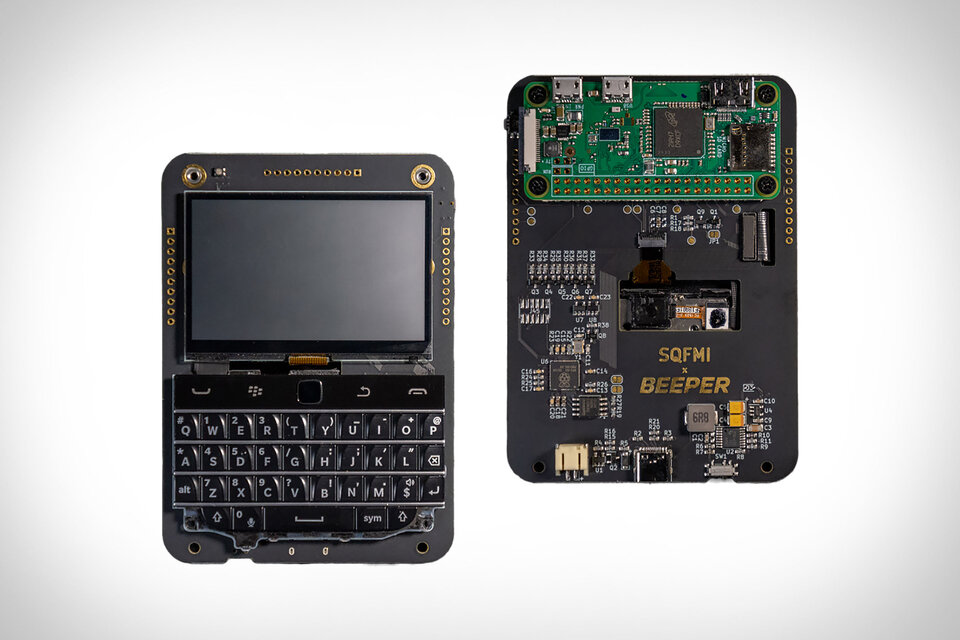
Blackberry Pi, or what you get when you pair a blackberry and a Raspberry Pi

What do you get when you pair a Blackberry-like device with a Raspberry Pi?? You get the Beepberry Pocket Computer!

I mean I just love the thing! Do I know anything practical I can do with it? No. Does that mean I shouldn’t lust after it? Also no. 🙂

The brains behind it is the same as that behind the Pebble watch, which was a great device IMHO. I suspect this is as well.


What I find interesting in tech and can tell you about, Dec 2022


Time once again to show what IT stuff I’ve been doing in the last few months. Some of it I can’t include here due to confidentiality reasons, and there’s some things I want to write about separately. The rest is below and worth checking out.

Software: I’ve been doing some python programming lately, so I found these useful: How you can get your browser history via a python library. Also How to Create Your Own Google Chrome Extension...I’ve been wanting to do this. I used this tutorial recently to build a simple stopwatch With Javascript. Relatedly, here’s a  Free Countdown Timer for Your Website.

I’ve been looking into PyQT for a number of reasons so I found these good: How to Install PyQt for Python in MacOS?, and Python PyQt5 Tutorial – Example and Applications, and pyqt statusbar – Python Tutorial.

Here’s some useful git stuff: Merge Strategies in Git and  best practices on rolling out code scanning at enterprise scale.

Now useful but  cool: matrix webcam. Also this is a cool shell.

A thoughtful piece on DevOps metrics. As for this, DevOps is Bullshit, can’t say I agree.

Finally, I’ve been getting into Neo4J and found this helpful:  Neo4j and graph databases: Getting started.

Hardware/Pi: is this the next new thing: stretchable display? This fast charger is also fun. Game fans, take note: Steam is coming to Chromebooks. 

This is good:  iphone 14 is the most repairable since iphone 7. This is awesome: this retro punk nixie wristwatch actually uses authentic nixie tubes to tell the time. This is handy:  13 great arduino projects to try.

I love this:  Nerdy Hanukkah Card! I also love the idea of making a Raspberry Pi-powered radio. More on that here: at Instructables. Also a good project: How to use Google Assistant on the Raspberry Pi.

Cloud: Here’s some AWS help:  choosing an aws container service to run your modern application, and pointing your Namecheap Domain Name to AWS Linux, and db2 and amazon web services better together.

Some IBM Cloud help: share resources across your ibm cloud accounts, and migrating a large database into ibm cloud databases. Also: Get started with IBM Wazi as a Service.

Some other interesting essays on cloud:

Misc: RIP Kathleen Booth, inventor of Assembly Language. Same for another giant, Frederick P Brooks.

The future is weird:  bereal app gets real roasted with memes and gifs are cringe and for boomers giphy claims.

This surprised me:  amazon alexa is a colossal failure on pace to lose 10 billion this year. In other news, here’s a review of amazon halo rise.

Stratechery by Ben Thompson is always worth a read. Here’s they are on Microsoft Full Circle.

Here’s three stories. One on Zoho (how zoho became 1b company without a dime of external investment), one on Uber (uber says compromised credentials of a contractor led to data breach) and one on Sobeys (inside turmoil sobeys ransomware attack)


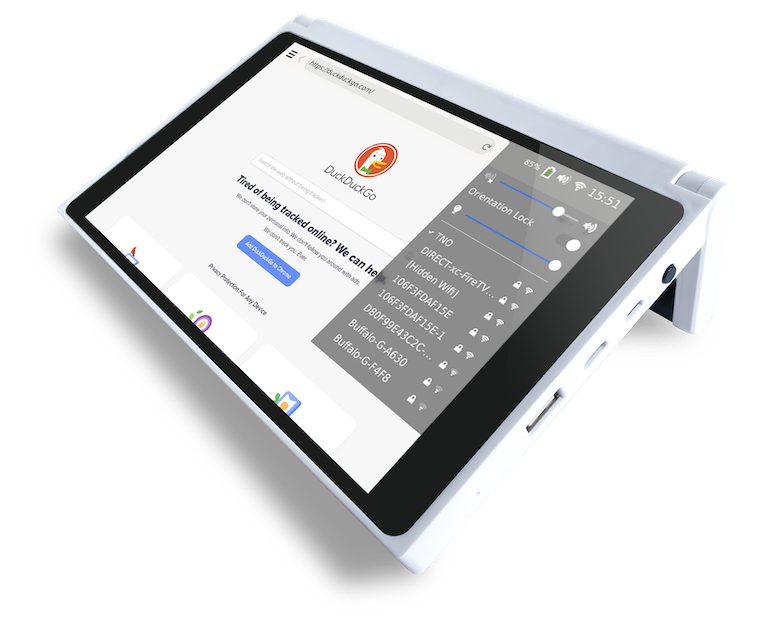
Penk Chen is making computers cool again

And to me he is doing it with these two machines: the CutiePi tablet above, and the Penkesu Computer below…

I think both of these machines are fabulous. I love the different designs of both of them. The handle for the CutiePi is great: you can carry it and then use it to stand up the computer. As for the Penkesu, I love how it reminds me of the old netbooks I used to love.

Well done, Penk Chen and team. For more on the bottom device, see: The Penkesu is a DIY retro handheld PC with a mechanical keyboard – The Verge.

P.S. Hat tip to Clive Thompson for pointing this out.


What I found interesting in tech, July 2021

Here’s 59 links (!) of things I have found interesting in tech in the last while.

It ‘s heavily skewed towards Kubernetes because that’s mostly what I have been involved with. Some stuff on Helm, since I was working on a tricky situation with Helm charts. There’s some docker and Open Shift of course, since it’s related. There’s a few general pieces on cloud. And finally at the end there’s links to a bunch of worthwhile repos.

Almost all of these links are self explanatory. The ones that aren’t…well…few if anyone but me reads these posts anyway. 🙂 Just treat it like a collection of potentially good resources.

Raspberry Pi / Pico: I have been interested in doing work with the Raspberry Pi Pico, so here are some links I liked:
Raspberry Pi Pico: Programming with the Affordable Microcontroller and Getting started with Raspberry Pi Pico – Control LED brightness with PWM | Raspberry Pi Projects and How to Use an OLED Display With Raspberry Pi Pico | Tom’s Hardware.

I am interested in getting bluetooth working with my Raspberry Pi Pico, so I am reading things like Bluetooth serial communication with Mac, JY-MCU Bluetooth and Arduino | Cy-View and How to: Setup a bluetooth connection between Arduino and a PC/Mac | ./notes and Cheap BlueTooth Buttons and Linux – Terence Eden’s Blog

Not a Pico, but I am also interested in doing work with the ATTTiny 85 chip, so I saved this: How to Program an ATtiny 85 Digispark : 8 Steps – Instructables

Here’s two projects I am interested in. Using a Pico to press a key on the Mac using bluetooth: How to run an AppleScript with a keyboard shortcut on macOS while here is a fun project – Making an Email-Powered E-Paper Picture Frame

Here’s some cool MIDI projects with a Pico: this one, NEW GUIDE: Modal MIDI Keyboard @adafruit @johnedgarpark #adafruit #midi « Adafruit Industries – Makers, hackers, artists, designers and engineers, this Code the Modal MIDI Controller | Modal MIDI Keyboard | Adafruit Learning System, and this Build smart, custom mechanical keyboards for MIDI – or really tiny Ableton Live control – CDM Create Digital Music

Kubernetes/OpenShift / Containers: I’ve been doing more and more work on K8S and OpenShift and found these useful…

Cloud: some advanced cloud knowledge here:

Software Development: here’s some random dev links:


General: finally here are some interesting links on IT in general:

(Image: via NYT piece on mesh)

What I find interesting in tech, May/June 2021

Here’s what I found interesting lately in tech, from cloud to coding and lots more.

Cloud: I’ve been doing lots of work on Azure recently. Some things I found useful were this listing of Virtual machine sizes Also disk types. This piece on how to expand your virtual hard disks on a Linux VM was good. If you want to run Websphere on Azure, read this: Run WebSphere Application Server on Azure Virtual Machines.  If you want to learn more about deploying applications in Red Hat, read this. Finally here’s some good stuff from IBM on
Cloud Architectures.

Coding: If you want to print coloured text in Python — and who wouldn’t? — this is good. If you want to turn your HTML into an RSS feed, read this.  This will help you set up VS Code to do PHP Development. For people wanting to learn more about machine learning, IBM can help you. If you love Prolog or Javascript — or both! — check out: Tau-Prolog

Raspberry Pi/IOT: This is a great guide on how to troubleshoot problems with a Pi. This is a cool project using an OLED to make a clicker counter. If you need to load an OS or anything else on a Flash card, check out balenaEtcher. Here’s some advice on getting started with Bluetooth Low Energy. If you want to connect a raw serial terminal to a bluetooth connection, read that. If you want to do a cool Raspberry Pi Pico project with a MIDI, see this.

Fun and cool: Not a real Captcha, but a real fun one! DOOM Captcha – Captchas don’t have to be boring. Also fun: Crappy robots, ranked!. As an old user of 3270s, this downloadable version of 3270 fonts is awesome. Speaking of cool, here’s kinda the source code for Eliza! Check it out.

Other: Here’s some help on how to control smart home devices using speakers and displays. Here’s a good reminder that robots have a way to go yet: Peanut the Waiter Robot Is Proof That Your Job Is Safe. Developers! Here’s What’s Hot/What’s Not in terms of skills. Finally, have you considered how to
write software that lasts 50 years?

(Image via Raspberry Pi)

Tech Stuff I am interested in, Arduino edition, March 2021


Last March at the beginning of the pandemic I was doing a bunch of Arduino projects. I stopped for some reason. Well, a number of reasons. But I want to get back at it and dive back into these sites.

If you are interested in working with an Arduino, check these out:

  1. Circuito.io: a good site to draw and plan out circuits!
  2. Using Arduino with a Nokia 5110 screen
  3. How to use bluetooth and Arduinos together
  4. More on using bluetooth and Arduinos together
  5. How to use Infrared receivers and Arduinos together
  6. A good tutorial to start you off
  7. How to use LEDS and Arduinos together
  8. How to use LCD displays and Arduinos together
  9. How to use temperature displays and Arduinos together
  10. Morre on LCD displays
  11. More tutorials
  12. A classic intro: getting an LED to blink
  13. How to use Raspberry Pis and Arduinos together
  14. How to use Arduinos to check your website
  15. More on bluetooth
  16. How to use a 16×2 display and Arduinos together

A bonus Raspberry Pi section

Finally, the homepage for Arduino is here.

(Photo by Mathew Schwartz on Unsplash )

On the new Raspberry Pi products: the 400 and the Pico

Years ago I worried if  the future for Raspberry Pi would dim. I am happy to say I worried for nothing. The good folks at Raspberry Pi continue to stride boldly into the future with new and better products. Case in point: the Pi 400 and the Pi Pico.

The 400 has been out for a short time, but it is still fairly new. If you are wondering if it could be effective for everyday use,  read this: Raspberry Pi 400 for working and learning at home – Raspberry Pi. I am seriously thinking of getting one for some basic day to day computing.

As the Pi Pico, it is brand new! If you are a fan of the Pi for IoT work, the Pico could be the device you want. To see what I mean, read this: Meet Raspberry Silicon: Raspberry Pi Pico now on sale at $4 – Raspberry Pi. I have order four! I can’t wait to try it out.

The future looks bright for Raspberry Pi.

Can you replace your desktop computer with a Raspberry Pi in 2020?

rapsberry pi 4
Not yet. Not even if it is raspberry pi 4. As this piece argues, there are still some issues with it that will make you want to hold on to your desktop computer. At least in 2020.

A few comments:

  • depending on your use, you may read this and think: hey, those issues aren’t deal breakers for me. If so, I say go for it.
  • If you have been using a Chromebook and it’s been fine, then you may be more likely to say yes too.
  • If you need a second computer for specific uses, then the Pi 4 may be just the thing.

Eventually there will be a Pi that is both fast and full function and cheap and that will be the just the thing. But in the year 2020, you still want your desktop/laptop.

All that said, the piece is really good, really detailed. Worth reading. The image is from the piece.

Retro radios, remade

null

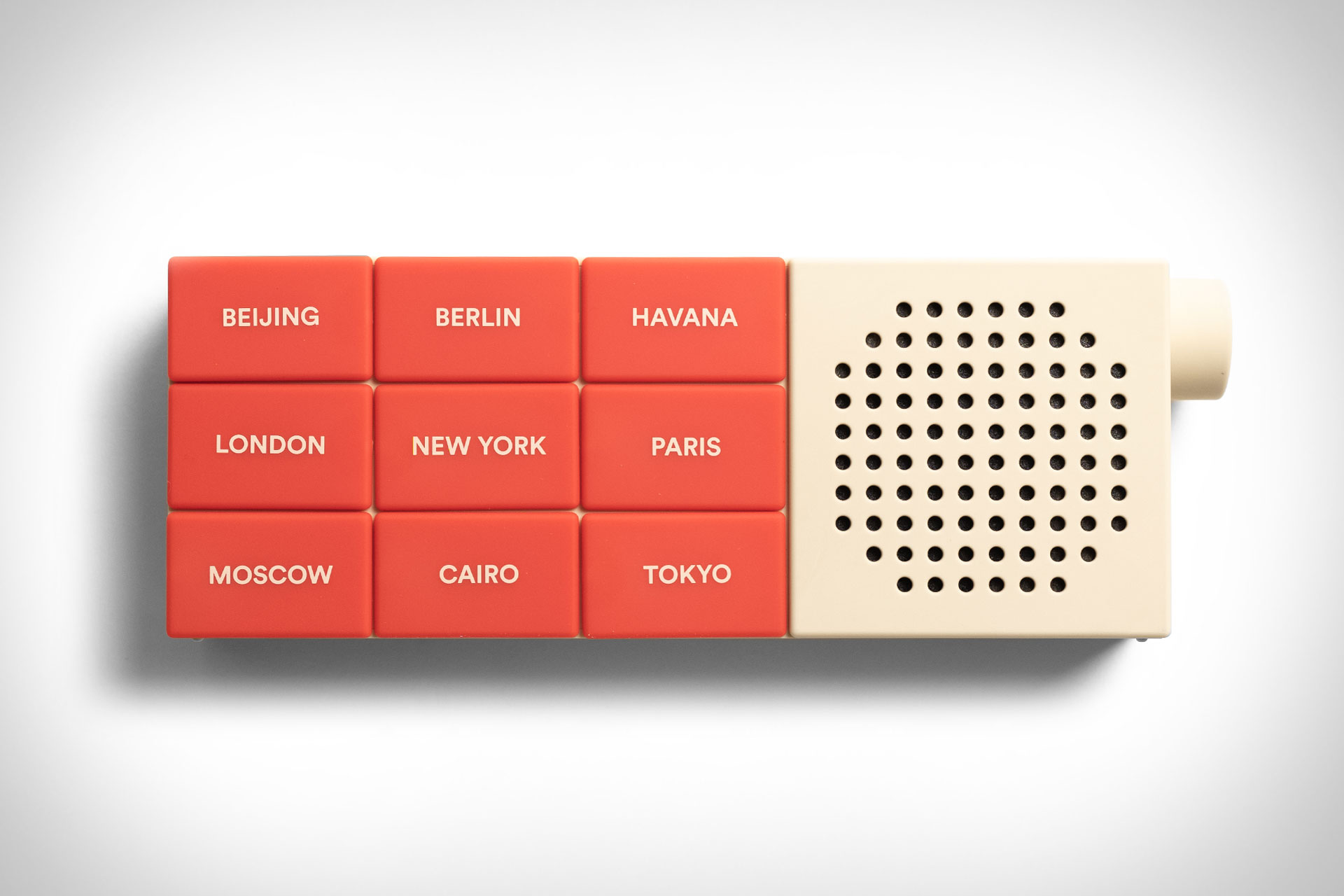
I absolutely love this City Radio, shown above. You push the button and it play music from the city listed.  So cool. Love the analog design too. It reminds me of the best of Dieter Rams and Braun.

Part of the reason I love it is because it reminds me of the old radio my grandmother had. As a kid it had all the cities of the world listed on a glowing panel, and as I would move the dial a needle would go back and forth and play music from different parts of the world (depending how good reception was). That just amazed me then.

If you have technical skills, and old radio and a raspberry pi, you can make such a thing for yourself.  Just google “convert old radio raspberry pi”. Of the links I found, I like this and this and this.

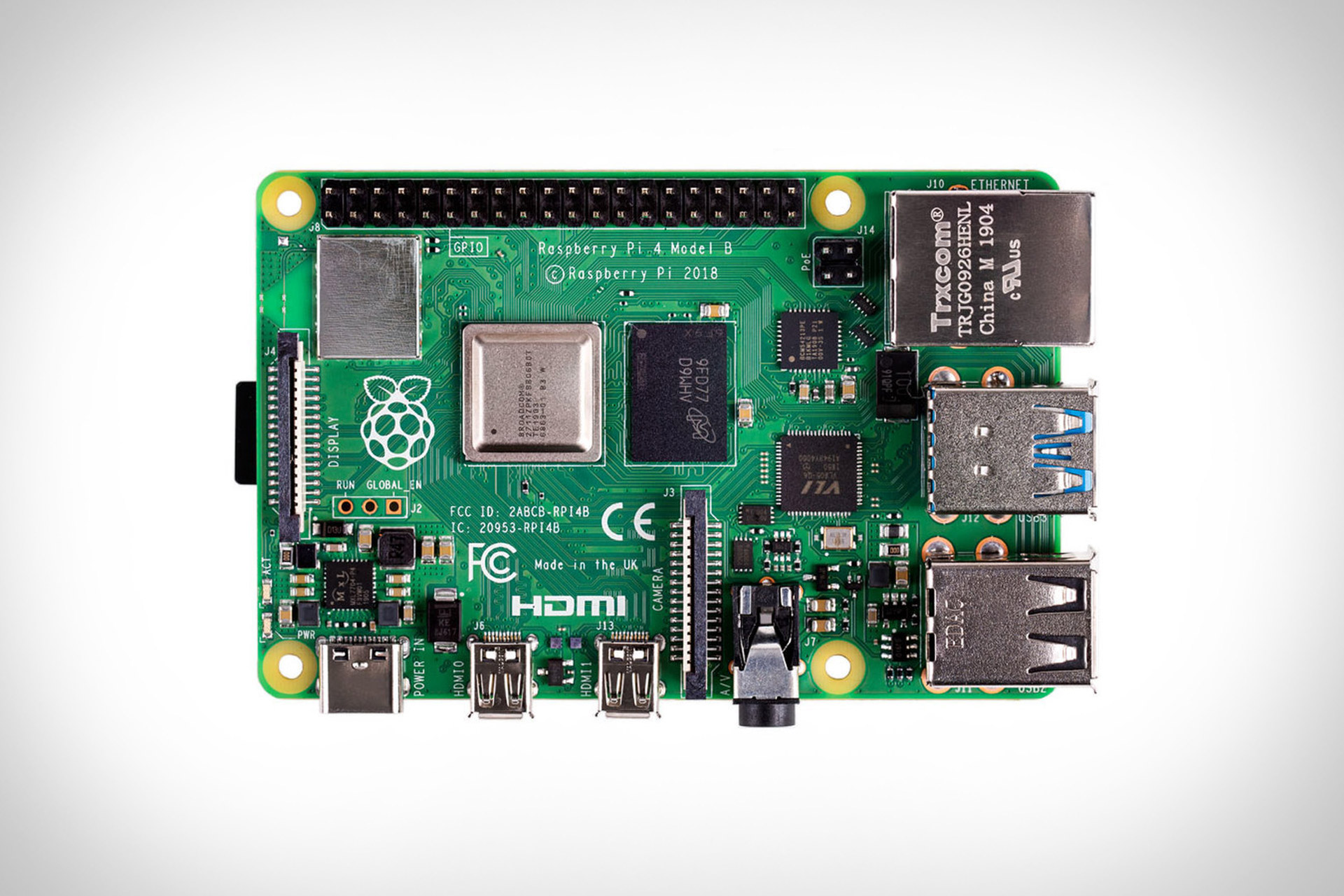
The Raspberry Pi 4 is out


I love Raspberry Pis. They are great for playing around and learning about technology.  But until recently I would not recommend them as an every day computer, if anything because they are just too slow. Or they were before the Raspberry Pi 4. With the capabilities of the new Pi 4, they may be ready to become your main or at least backup computer.

If you are interested, you can Google them and get alot more information on them. Here’s two sources more:  Raspberry Pi 4 Computer | Uncrate and Engadget.

How to get a Raspberry Pi working with a TV with composite/component input (as opposed to HDMI)

RaspberryPiTV
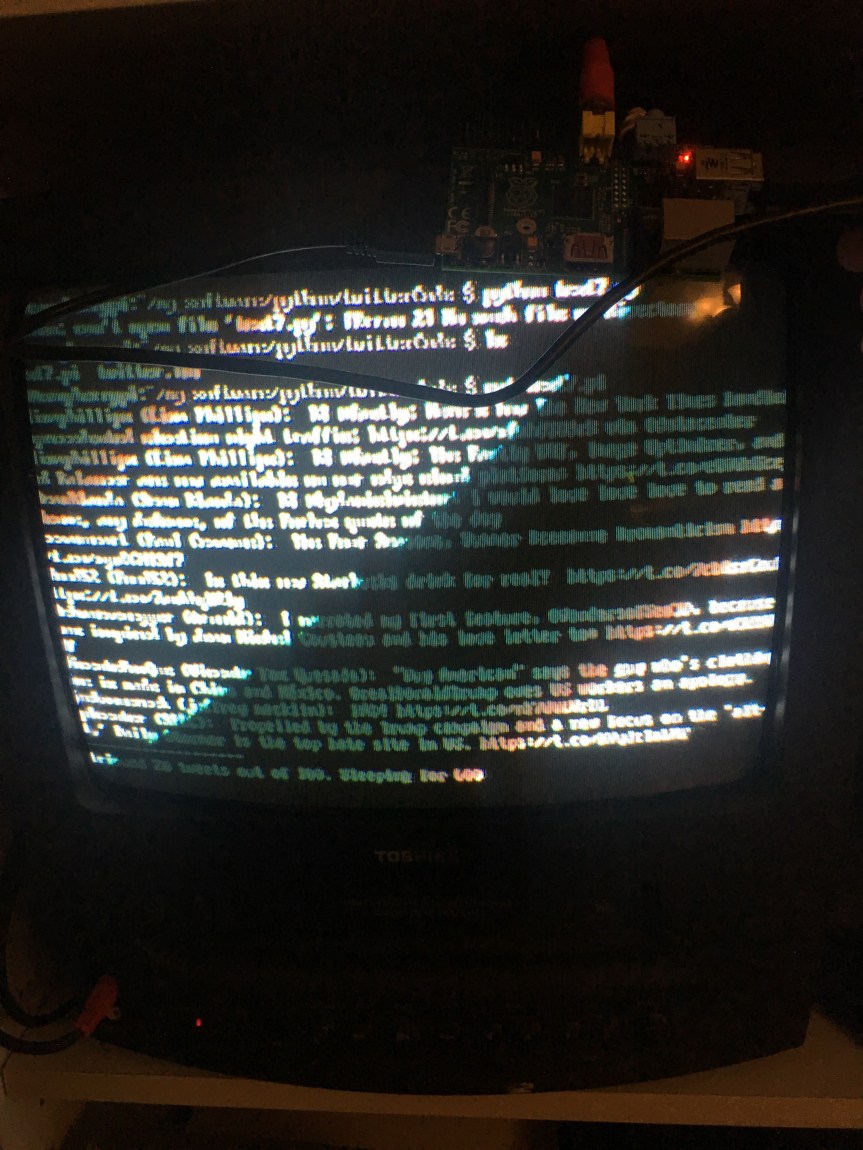
I had an old Raspberry Pi 1 Model A, with an HDMI port and a standard RCA composite video port for older displays and I also had an old Toshiba TV (pictured above) and I wanted to get them working together. Here’s what I did and here’s some things I learned.

First things first, I had to get a the Raspberry Pi functional. To do that, I mostly followed the steps here: http://www.pcworld.com/article/2598363/how-to-set-up-raspberry-pi-the-little-computer-you-can-cook-into-diy-tech-projects.html. I say mostly because I was using a Mac, so I used SDFormatter to format the SD card. If you have a Mac, you can get SDFormatter here.

Basic steps to set up the Pi were:

  1. Download Raspbian
  2. Download SDFormatter
  3. Put the SD Card in my Mac (you want at least an 8 GB SD card).
  4. Format the SD Card using SDFormatter
  5. Unzip Raspbian
  6. Take the files in the unzipped Raspbian folder and copy them onto the SD Card (which should appear on your desktop)

All that is pretty straightforward in terms of setting up the Pi. If you don’t care for the instructions from PCWorld, Google “Raspberry Pi setup Mac” (or Windows or whatever your operating system) and you will likely find a site that is helpful.

Now, once the files are copied on to the SD Card, modify the config.txt file on the SD card. This is a key thing I had to do. Before I did it, I could plug my Pi into the TV but nothing appeared on the screen. After modifying the config.txt file (and it took some hacking around), I was able to get it to work.

Why do you have to do this? It seems that Raspbian assume you will be using HDMI and will not recognize a non-HDMI output device unless you modify the file. So modify it you must.

Note! Before I edited the file and replaced the text in it, I selected all of the text in that file and copied and pasted it into a file on my Mac as a backup. I recommend you do the same. Then I made the changes to the file, saved it, then ejected the SD card and put it in my Raspberry Pi. If you want to see my version of the file, you can see it here.

It was a process of trial and error to figure out which lines in the the config.txt to change. I was fortunate that I could start with this page which had details on how he got it working. Unfortunately his config.txt and the one I needed were slightly different, so I kept at it until I figured out how it should work. (With his file, the text was unstable: it kept rolling up the screen. With my file, the text did not roll.)

In my config.txt, I have colour burst disabled, rendering everything in black and white. Enable it if you want colour. I disabled it because I thought it would improve resolution but it did not.

Other things to note:

  • I had trouble determining which part of the composite cable should go into the TV. I had one end plugged into the Raspberry Pi, but it took me trial and error until I figured out where to plug the other end into the TV.
  • It will take up to a minute or longer before the Raspberry Pi sends video to my TV. If you don’t see output right away, be patient.
  • Most newer TVs also have composite/component ports. I used them for some testing.
  • Is it worth doing this if you can hook up to HDMI? I’d say no. I wanted to make use of the old Toshiba TV but if I had an old monitor with an HDMI port, I’d get an HDMI cable from the dollar store and connect up the Raspberry Pi that way.
  • When is it worth doing? I’d say if you had simple output to display, and the only ports available on your TV were the component ports, than give it a shot. I actually wrote a simple Twitter client in Python that polls Twitter every 5 minutes and displays my feed in text form. For simple text output like that, this set up is perfect. (You can see the output above: it looks weird due to the refresh rate and my phone: to the eye, it looks ok.)
  • Is it component or composite? I see the words “component” and “composite” used  and I am not sure which is correct.  In my case, all I know is I have one cable to connect the Pi’s video output to the TV’s input port. The Pi has only one video port to plug into, so that’s easy. Most TVs will have more than one port to accept video input: you need to experiment to get the right one.

I hope you found this useful.

P.S. The other thing I like about doing this is: my TV now  looks like the TV between Leon and Holden in Blade Runner. 🙂

Some good IT links on cloud, software development, github, python, IoT and more

As I go through my day, I often find IT links that are of interest to work I am doing. This is my latest set of links. As you can see, I am keen on cloud, software development, github, python, and IoT, to say the least.

.

Need a gift for a child? Consider the Kano computer


I am a big fan of the Raspberry Pi. And I think there is no better way to learn about computers and take your knowledge to a deeper level than building your own computer. The folks at Kano must agree, because they have put together this kit than combines the Pi with everything the owner needs to build a workable and very useful computer. Now you can buy all these things separately, but this kit saves you time and makes up for any lack of knowledge you might have in this area.

You will still need to have a display device to connect to it. Preferably this will be a HDMI device, though it is possible to hook it up to a non-HDMI device. (See here for details.)

For more on the Kano, go here: Kano – Make a Computer.

How To Set Up Your Raspberry Pi For The First Time


If you just bought or are thinking of buying a Raspberry Pi, then two things:

  1. Congratulations!
  2. Read this: How To Set Up Your Raspberry Pi For The First Time – ReadWrite.

Not only will it help you get set up, but it also has a list of projects to get your started on doing something useful with it. As well, there’s some links to other resources.
There’s lots of material on Raspberry Pi’s on the Web, but if you haven’t found them yet, try this one at ReadWrite and get started.